How to compute custom columns in product feeds (without changing your catalog)
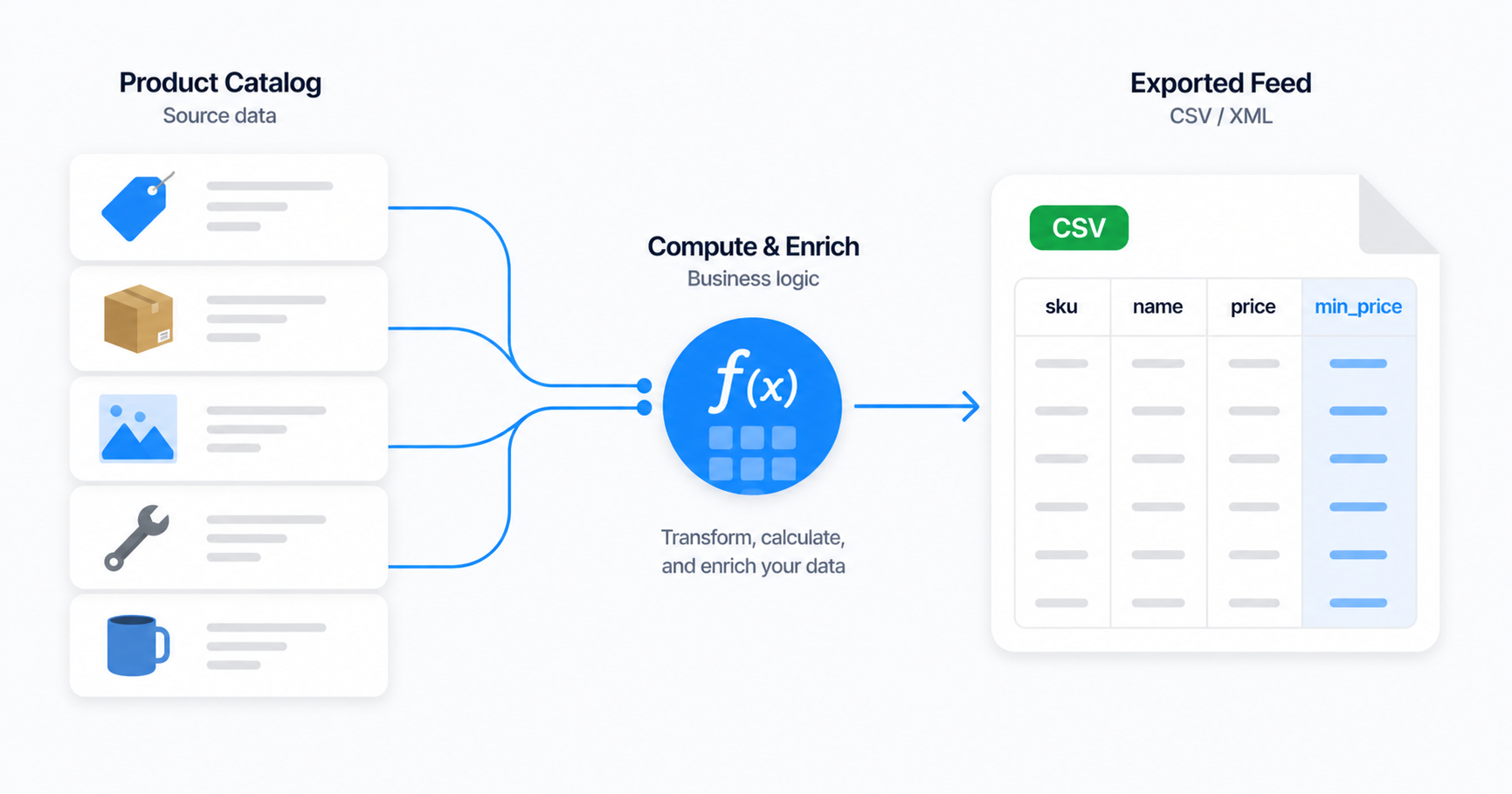
Build calculated columns in your easySales Dynamic feed — minimum prices, second-currency prices, available stock — using a characteristic, a column, and a Feed Rule formula. Your catalog stays untouched.
Sooner or later every merchant who runs a Dynamic feed hits the same wall: the partner wants a column that doesn't exist on the products. A repricing partner wants a min_price floor. A B2B distributor wants eur_price alongside the local one. A 3PL wants available_stock — physical stock minus what's already promised on open orders. The columns aren't on the catalog. The numbers aren't worth storing on every product. But the partner won't accept the file without them.
This is what computed columns in the easySales Dynamic feed are for. You define the column in the feed, write a small formula, and easySales calculates the value on every regeneration. Your product catalog stays clean. Nothing is saved on the products themselves.
Why merchants build computed columns
A "computed column" is a column whose value is calculated at the moment the feed is generated — not stored anywhere. It exists for the file you publish, and only for that file.
Three patterns come up over and over:
- Floors and ceilings. A repricing partner wants the lowest price you'll accept. You don't want to store that as a product attribute (it changes per channel, per campaign, per margin policy). A formula derives it from acquisition price + margin on every export.
- Cross-currency feeds. A partner outside your home market wants prices in their currency. Storing a parallel price column per market doesn't scale; converting on the fly does.
- Computed availability. A partner needs to see what's actually orderable, not what's on the shelf.
stock - reserved_stockis one column subtraction away.
The shared trait: the value is a function of other product values, recomputed every time the feed regenerates. Storing it on each product would mean updating every product every time the inputs change — a maintenance burden you don't need.
How a computed column works in easySales
Three pieces, each five seconds of work:
- A characteristic — the slot the value lives in. You create it once, give it a name, and leave it empty across all products.
- A Dynamic feed column — the wiring that puts the characteristic into the output file.
- A Feed Rule with a formula action — the calculation that fills the slot at export time.
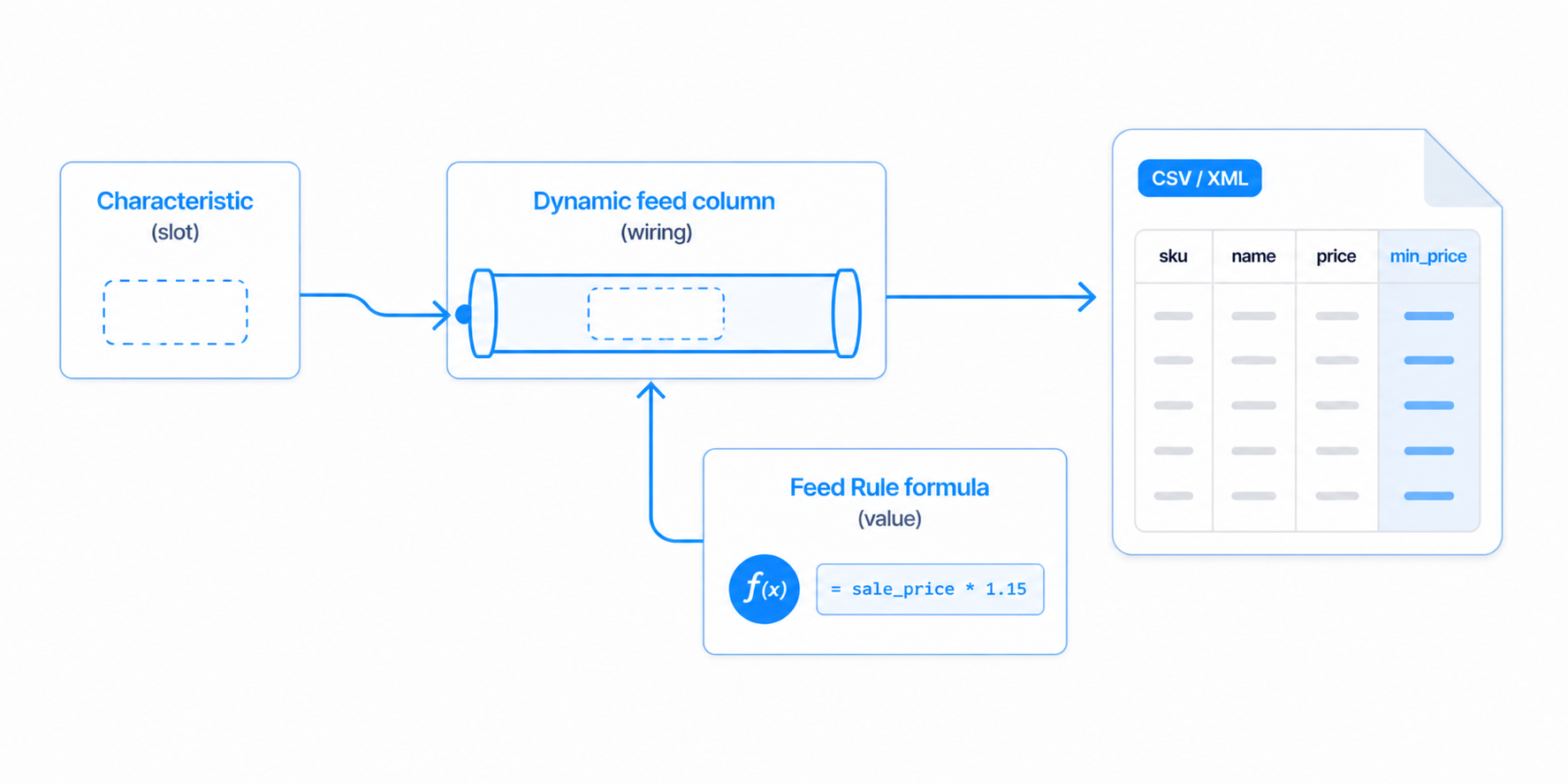
The slot stays empty in your catalog. The rule fills it during the export. The column renders the filled value in the file. Three small pieces, one well-defined job each. Add the rule, regenerate, the value appears. Remove the rule, regenerate, the value is gone — without any product ever changing.
Step 1: Create the characteristic
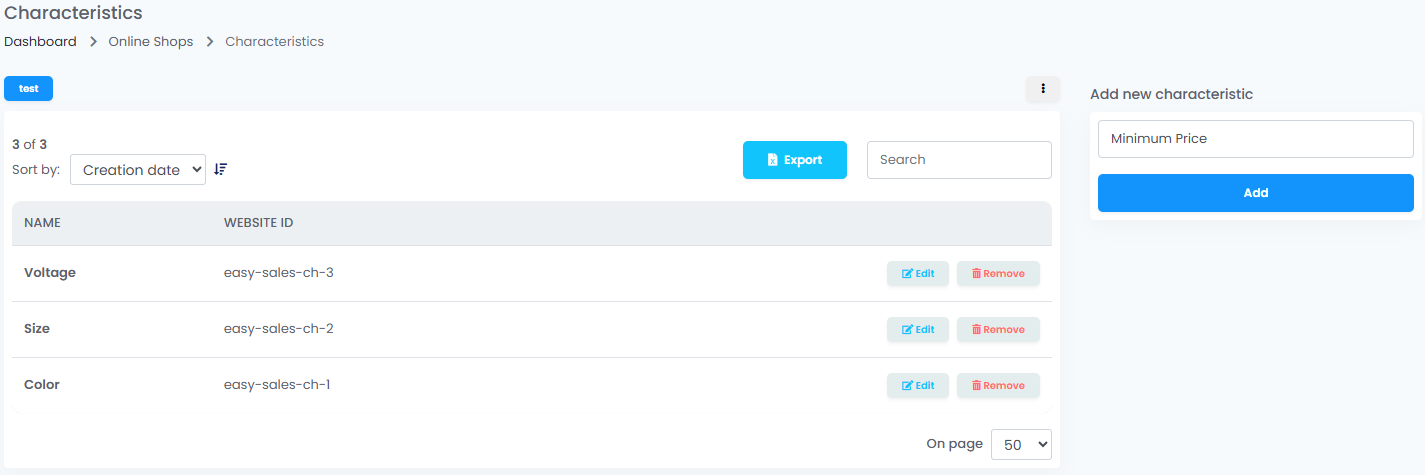
Open Catalog → Characteristics and create a new characteristic. Give it a clear name — the one your partner expects in the file is a fine choice.
Examples: Minimum price, EUR price, Available stock.
You don't need to fill values on any product. The whole point is that this characteristic is a destination for a formula, not a real product attribute. Save it and move on.
A few naming tips:
- Pick names you'll recognise six months from now.
Minimum sale price (RO)beatsmin_price_ro_v2. - If the same value will be used in several feeds, use one characteristic across all of them. Computed values are scoped per feed (the rule lives on the feed), so the same characteristic can hold different computed values in different feeds without colliding.
- Avoid characteristics that already have product data on them. If
Voltageis a real catalog field, don't reuse it as a computed slot — pick a different name. Computed values overwrite the existing pivot in memory; you'd lose the real values for the duration of the feed render.
Step 2: Add it to your Dynamic feed
Open the Dynamic feed. In the column builder, add a new row, pick Characteristic from the column dropdown, then pick the characteristic you just created from the chained selector.
The column will render in the output file. The cell value comes from whatever the rule computes for each product.
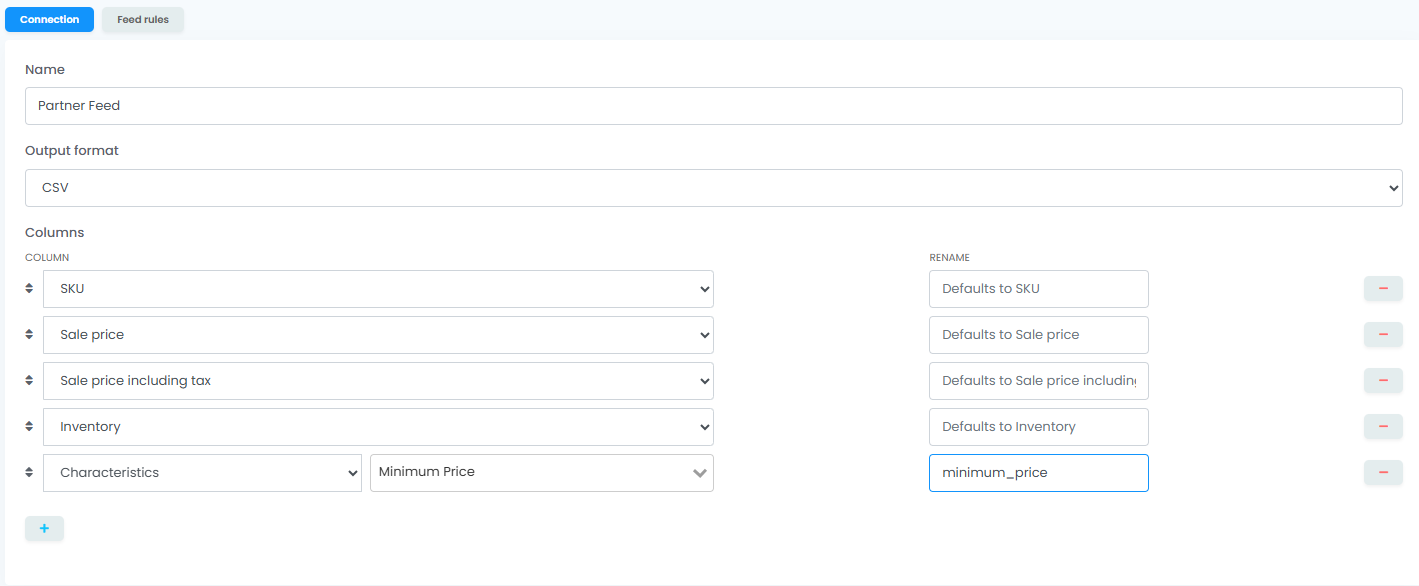
If your partner expects a specific name for that column — min_price instead of Minimum price, price_eur instead of EUR price — use the Rename field next to the column. The renamed value is what shows up in the CSV header / JSON key / XML element name; everything else in the UI stays the way you wrote it for yourself. Rename works on every Dynamic feed column, computed or not — it's the same field anywhere a partner expects a different name than the one easySales uses internally.
Step 3: Write the Feed Rule that computes the value
Switch to the Feed rules tab on the same feed. Add a rule:
- If:
ALWAYS(or a condition — see below). - Then: pick the characteristic you created as the property, pick formula as the operator, then write the formula.
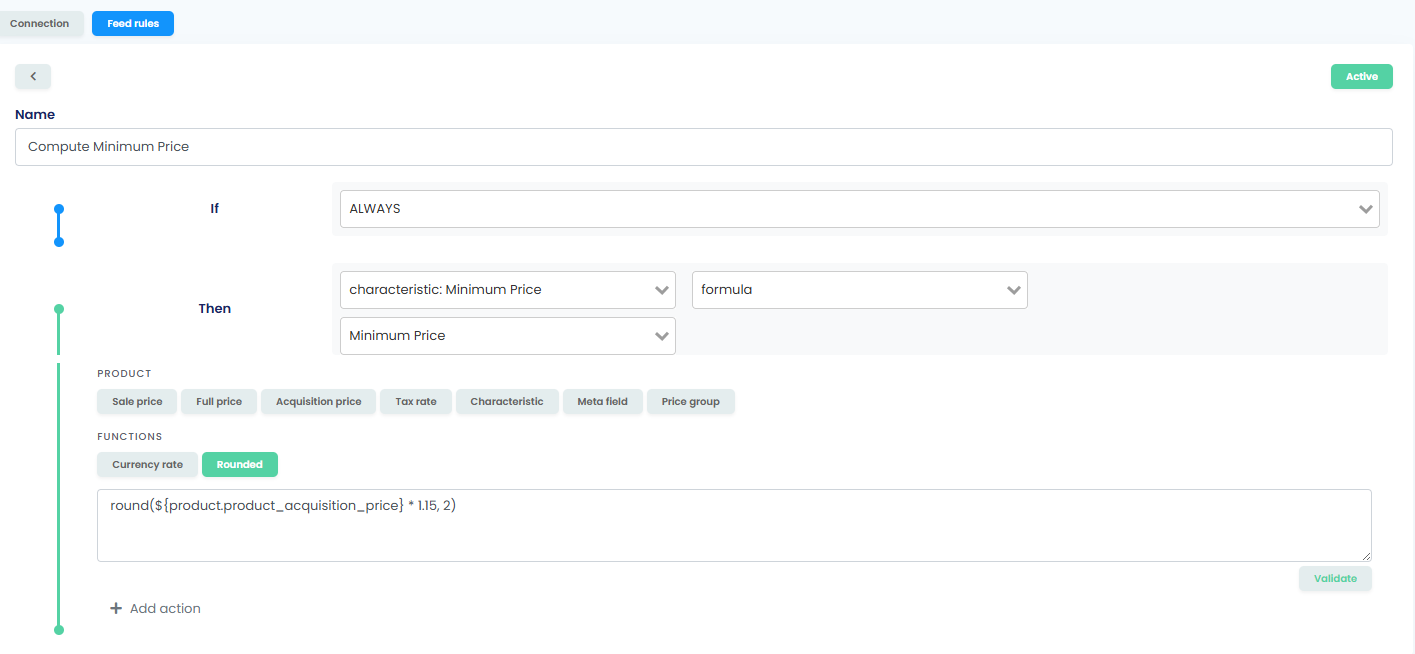
The formula editor has a chip palette with the variables you can pull in:
${product.product_sale_price},${product.product_full_price}— the listed prices, without VAT.${product.product_acquisition_price}— your cost.${product.product_tax_rate}— the per-product tax rate as a whole number (e.g.19,20,21). Divide by 100 to convert it to a multiplier —1 + ${product.product_tax_rate} / 100returns1.21for a 21% rate, which is what you'd multiply a net price by to get the gross price.${product.product_characteristic:<name>}— read another characteristic by its name (case-sensitive). Useful for chaining: write one characteristic with a base value, reference it from the next characteristic's formula.${product.product_meta_field:<key>}— read a custom product meta field by its key.${product.product_price_group:<id>}— read a contracted price-group price for this product.${other.currency_rate:FROM:TO}— live exchange rate between two ISO currency codes (e.g.USD:EUR,EUR:GBP).round(<expression>, <decimals>)— round the result to a fixed precision.
Operators: +, -, *, /, parentheses for grouping. Standard arithmetic.
Some columns aren't surfaced as formula variables on purpose — stock, reserved_stock, weight, and the various non-price columns. To compute a value from those, use the arithmetic action operators on a Feed Rule (overwrite, subtract, multiply by, add) instead of formula. The Available stock recipe below shows the pattern.
Save the rule. The next regeneration runs it for every product, fills the characteristic in memory, and renders the value in the file. The product catalog is never touched — your characteristics page stays as empty as you left it.
If you only want the formula to apply to certain products (one category, products with stock, products on a specific brand), add conditions on the If side: characteristic-based, column-based, category-based — anything the rule builder supports.
Real-world recipes
Minimum allowed selling price for a repricing partner
A repricing partner needs a floor — the price below which they shouldn't go. You don't want to store this on every product (it changes when costs or margin policy shifts), so you compute it.
- Characteristic name:
Minimum price - Output column rename:
min_price - Formula:
round(${product.product_acquisition_price} * 1.15, 2)— acquisition + 15% margin.
Adjust the multiplier per channel by writing different rules in different feeds. Same characteristic, different formulas, different output files. The catalog never sees any of it. The screenshot in Step 3 above shows this exact rule configured.
Price in a second currency for a cross-border partner
Your partner is in a different market and wants prices in their currency. easySales has a built-in currency-rate function so you don't keep a parallel price list.
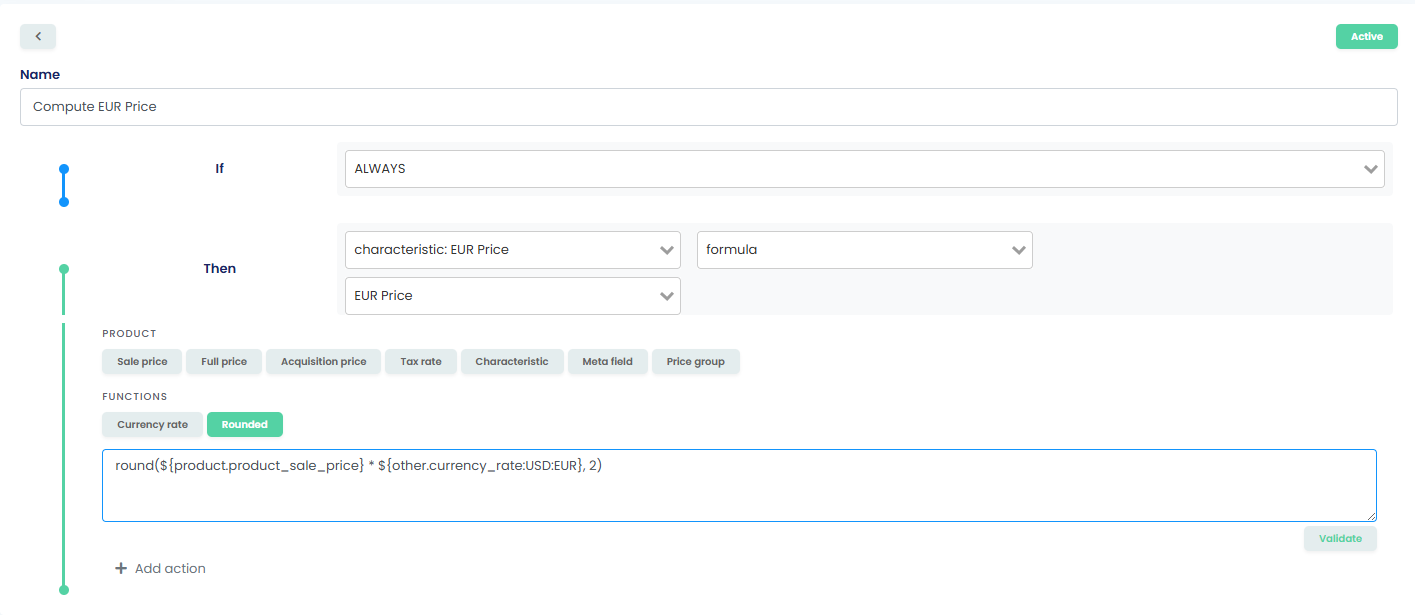
- Characteristic name:
EUR price - Output column rename:
price_eur - Formula:
round(${product.product_sale_price} * ${other.currency_rate:USD:EUR}, 2)— replaceUSD:EURwith the FROM and TO currencies that match your case.
Currency rates refresh automatically on a daily cadence — easySales pulls them from a central rate source so you don't maintain a parallel table. If your partner needs a stable rate for a contracted period (rather than the live one), reach out to support and we'll work out the right setup for your case.
Available stock (physical minus reserved)
A partner sees the stock you publish; if it's the on-shelf number and you have open orders, you'll oversell. The right number to publish is available-to-promise: physical stock minus what's reserved on open orders.
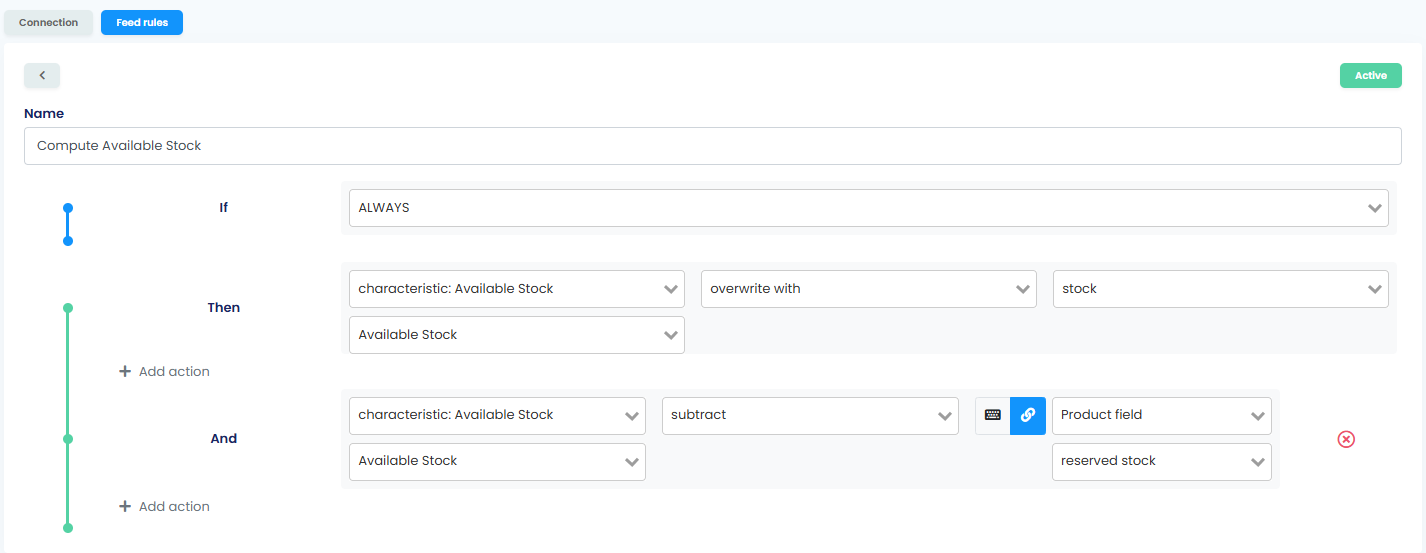
stock and reserved_stock aren't surfaced as formula variables, so this recipe doesn't use the formula operator at all. Instead, you chain two arithmetic actions on the same characteristic — the first writes the base, the second adjusts it.
- Characteristic name:
Available stock - Output column rename:
available_stock - Action 1: target =
Available stock, operator = overwrite with, source = columnstock. (Sets the characteristic to the product's stock value.) - Action 2 (added below the first, same rule): target =
Available stock, operator = subtract, value source = field, column =reserved_stock. (Subtracts the reserved-stock column from the running value.)
Two actions, one rule, top to bottom. The first writes the base; the second adjusts it. You can chain a third action (add / subtract against a literal number) if your fulfilment math needs a fixed safety-stock buffer on top.
Renaming any column on output
The Rename field appears next to every column in the Dynamic feed builder, not just computed ones. Use it whenever your partner expects a different name than easySales' internal one — price instead of full_price, cost instead of sale_price, inventory instead of stock.
Two notes:
- The rename applies to the file output: the CSV header, the JSON key, and the XML element name. The UI elsewhere keeps using easySales' names so you and your team don't get lost.
- XML element names have stricter rules than CSV or JSON. If your rename contains spaces or punctuation, easySales sanitises it for XML automatically —
Min price (RON)becomesmin_price_ronin<min_price_ron>tags. CSV headers and JSON keys keep your rename verbatim.
If two columns rename to the same output name, the feed builder blocks save and shows you which one collides. Pick a unique name and it'll save.
When NOT to use a computed column
- Real product attributes. If the data lives naturally on the product (Colour, Size, Voltage, EAN), use a regular characteristic and store it. Computed columns are for values that don't belong on the catalog.
- Per-channel category mappings. If your partner needs a Google Shopping category id, a Skroutz category code, or anything that maps your category to theirs, use the channel-specific feed builder — it's pre-validated and saves you the mapping work. Dynamic feed is the open-ended option for partners we don't have a dedicated builder for. See What Is a Product Feed? for the channel-feed primer.
- Static fixed values. If every product gets the same value (
condition: new,availability: in_stock), use the set to value action on a regular column rather than synthesising a characteristic — it's one less moving part.
If you're not sure whether a column should be computed, store, or fixed, support can look at your specific case. Most "computed-or-stored?" questions resolve in two minutes once you sketch the use case.
Build the columns your partners actually want
Open Feeds → Dynamic in easySales and ship a partner-ready file with computed columns in minutes. New here? Try easySales free for 14 days, no credit card needed.